

Use the API to classify each page in a document by type. You provide a document and a list of classes, and the API assigns a class to each page. Use those classes to decide how to handle each page downstream, for example which pages to parse, how to split a batch, or which extraction schema to apply.Documentation Index
Fetch the complete documentation index at: https://docs.landing.ai/llms.txt
Use this file to discover all available pages before exploring further.
is in Preview. This feature is still in development and may not return accurate results. Do not use this feature in production environments.
Example Use Cases
- Financial Services: Financial institutions receiving batches of mixed documents can classify pages to identify bank statements, utility bills, and identification documents before routing them to the appropriate processing pipeline.
- Healthcare: Healthcare systems ingesting patient records can classify pages to identify intake forms, pathology reports, and medication lists before parsing or extraction.
- Legal: Legal teams processing incoming documents can classify pages by section type (for example, cover page, terms, signature page) before routing each page to the appropriate review workflow.
- Insurance: Insurance companies receiving claim submissions can classify pages to identify claim forms, invoices, and medical records before extraction.
For information about pricing and credits, go to Pricing & Billing.
Process Overview
Follow these steps to classify pages in a document:- Define your class list by creating the classes that describe the page types in your document. Learn more about Classes.
- Classify your document using the API. Pass your document and class list. All pages are classified concurrently.
- Use the classification results in your downstream workflows. Route pages to Parse, Split, Extract, or other systems based on the class assigned to each page. Learn more about the response structure.
Classes
A class is an object with a requiredclass name and an optional description.
Include a description when the class name alone may be ambiguous (for example, "spec" vs "manual"). You can omit the description when the name is self-explanatory.
You can mix classes with and without descriptions in the same request.
Classify in the Playground
Use the Playground to build and test classification classes before incorporating them into your code. Upload a document, define your classes, and validate the results. When the pages are classified as expected, use the downloaded classes with the API, Python library, or TypeScript library to classify documents at scale.- Go to the Playground.
- Select the file you want to classify.
- Click Classify.
- Click Define Classes.
- List or describe the classes you want to apply to the pages and click Suggest Classes. (To create the class schema yourself, click Start from Scratch.)
- The app generates classes and class descriptions based on your input. Review the generated classes and descriptions before continuing.
- Click Classify to validate the classes on the selected file. (Click the drop-down menu to select whether to classify the Current File, All Files, or Custom.)
- Review the results. If needed, continue editing the classes and their descriptions.
- When the pages are classified as expected, get a ready-to-use script for classification or download the class schema to use in your own code.
Get a Ready-to-Use Classify Script
After you create a class schema, generates a script to classify files based on the class schema you created. The Playground provides two versions: one for calling the API directly, and one for the library. To get the script:- Go to the Playground.
- Open a project.
- Click the Classify tab.
- Click Get Code.
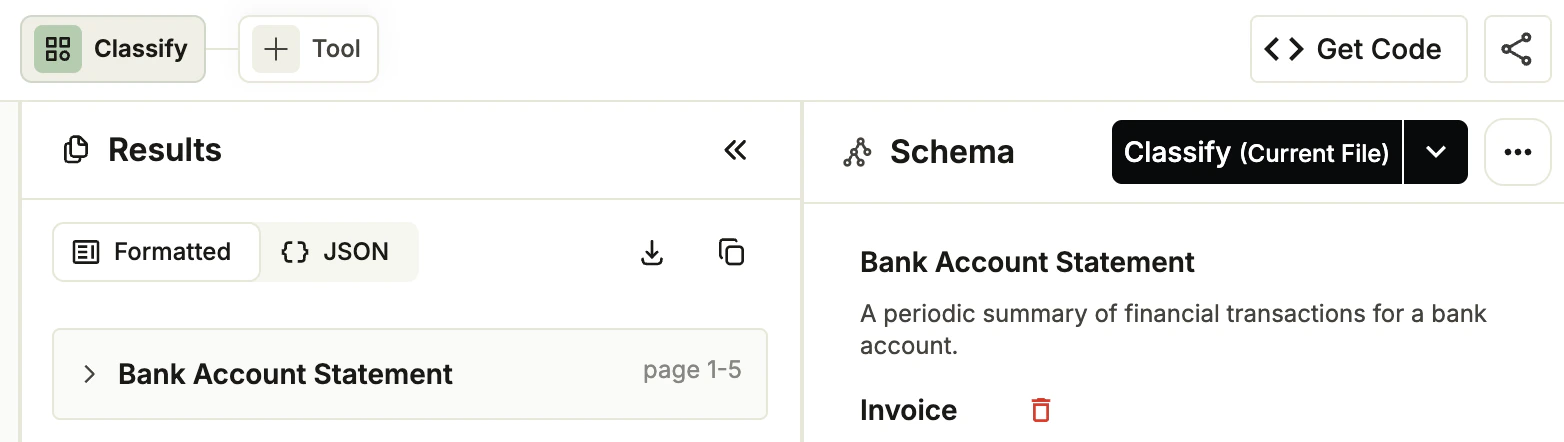
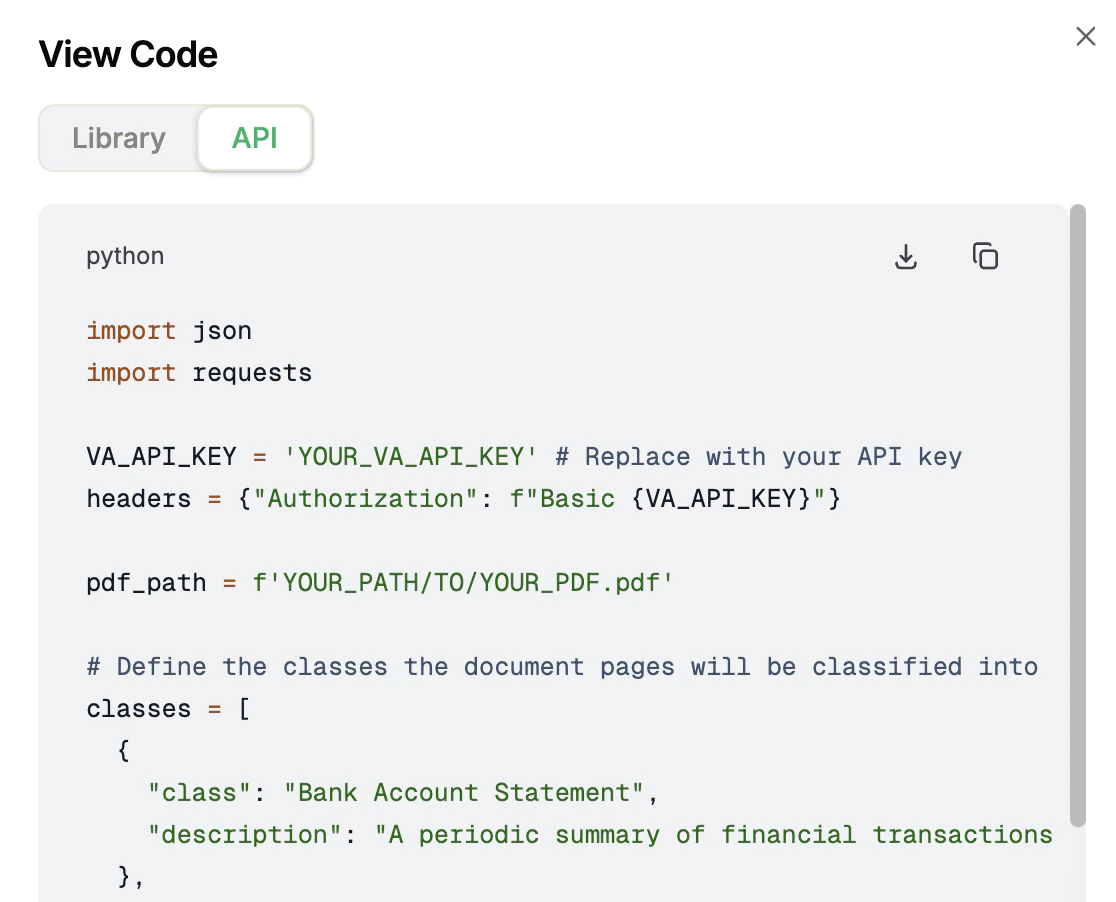
- The View Code pop-up opens. Click the Library or API tab to see the code for each method.
- Click the Download or Copy buttons to get the code.
Export the Class Schema to JSON
After you create a class schema, you can export it as a JSON file that you can pass to theclasses parameter in the API, Python library, or TypeScript library.
To export the schema:
- Go to the Playground.
- Open a project.
- Click the Classify tab.
- In the Schema panel, click … and select Download Classes. The classes and descriptions are downloaded as a JSON file.
Classify with the API
Classify the pages in a document by calling the endpoint. This example classifies a document that may contain invoices, bank statements, and earnings statements. Theinvoice and bank_statement classes include descriptions; earnings statement does not.
Parameters
Get the full parameters from the API reference.| Parameter | Required | Description |
|---|---|---|
document | Required (choose one) | The document file to classify. |
document_url | Required (choose one) | A URL pointing to the document to classify. |
classes | Required | A JSON array of class objects. Each object requires a class name and accepts an optional description. Pass as a JSON string in form data. |
model | Optional | The classification model version to use (for example, classify-20260420). Defaults to the latest version. |
Use Classify with Our Libraries
Click one of the tiles below to learn how to use the API with our libraries.Python Library
Use with our Python library.
TypeScript Library
Use with our TypeScript library.
Supported File Types
The API supports all file types that Parse supports, except spreadsheets (CSV, XLSX), up to 200 MB. For the full list, see Supported File Types.Share Your Feedback
is in public preview and we are actively looking for feedback to improve it. To share your experience, schedule a feedback session with us. Come prepared to discuss:- What is working well
- Any challenges you’ve encountered and how the feature could improve
- The email address for your account, found in your profile page
- The documents you used
- The code you used